
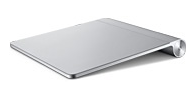
Last week, Apple began selling the Magic Trackpad for use with iMac and Mac Pro. If you're always using a laptop, and you have become used to small finger gestures controlling your machine instead of a clunky mouse, this might be for you. We thought it would be a good fit as an Inklet drawing device, so we updated Inklet to automatically detect and use the Magic Trackpad if it's connected. It would have been great if the new trackpad was the same as existing multitouch trackpads, only larger. Unfortunately, we found there were a few tradeoffs in sensitivity and resolution when moving to the larger size. Our guess is that Apple may have also limited the data being transmitted by the trackpad to conserve battery or bluetooth bandwidth. In practice, this means that the pressure sensitivity you've come to expect in Inklet is limited to only a few levels. --UPDATE-- v1.3.1 added an option to prioritize external multitouch devices, so you can use your Magic Trackpad even if you already have a nice built-in multitouch trackpad. If you also have a magic mouse, you may need to disconnect/connect your Magic Trackpad first. Here are the full release notes:
|
Magic Trackpad Support
|
The usual maintenance
|

Inklet has just been updated to version 1.2! The last release (1.1) focused on improving the drawing experience in Inklet. This meant smoother lines, less lag, and more accuracy. 1.2 maintains these enhancements, but also makes it easier to navigating around the computer. Here's the full rundown of new features:

|
Full multi-monitor support
|

|
Navigation-focused release
|

|
New anti-jitter algorithm
|
The iPad is great for sketching and taking notes, but could it be even better if it was able to respond to pen pressure?
We plan to release this capability as a free software library so it can be included in any application. However, this may not be possible for a while as the library now uses a private function call to access the required information.
We hope the UIKit framework can be updated to make the required information available, but there are no guarantees this will ever happen. In the meantime, we hope the video provides some insight into what is possible on this amazing piece of hardware.
Note: The small drawing lag in the video is an issue with our demo application code, and isn't a limitation of the iPad or the pressure-sensitive library.
Video: Canon Rebel T2i
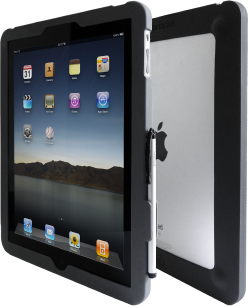
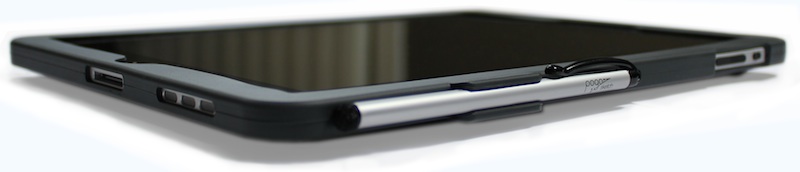
TweetIf the Pogo Sketch is the must-have accessory for the iPad, the next logical step is a case with built-in Sketch storage. We've kept a minimal design, with an open back and open access to all controls, and some beautifully contoured rubber feet to keep your iPad stable and elevated.
Particle is the full package, bringing together iPad, case and stylus in perfect harmony.

If you have a recent-model non-retina MacBook Pro, you may have noticed a glassy, high-pitched scraping sound coming from inside the laptop when it warms up. Sometimes, moving the computer will cause the noise. Other times, the noise just happens of its own accord. youtube recording of noise
Want to fix it?
Take off a few screws...
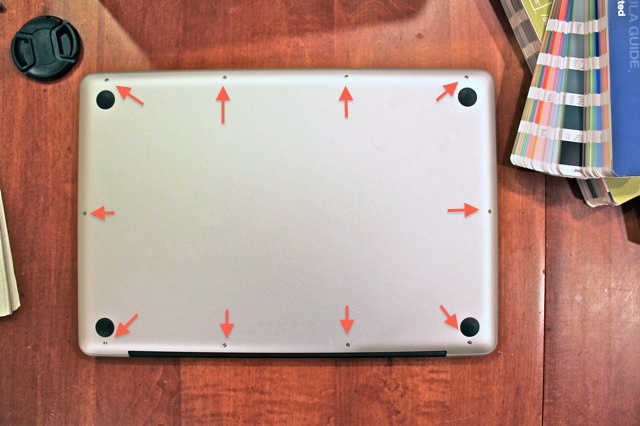 Find the offending part...
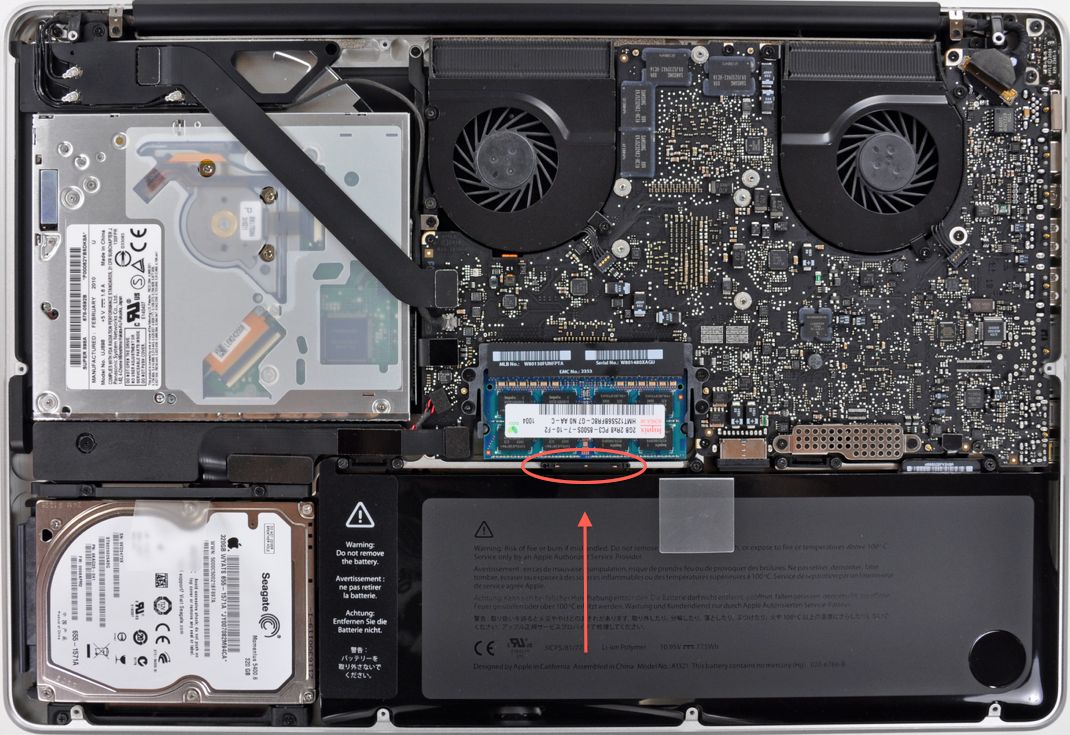 Remove it!
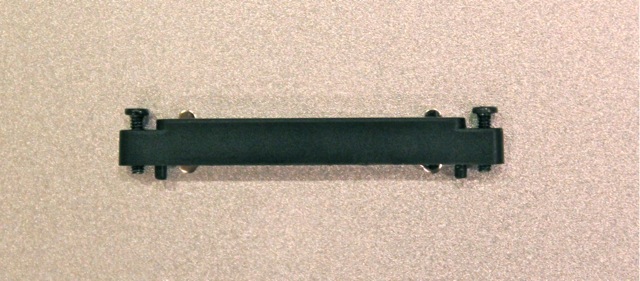 WHAT DID YOU MAKE ME DO?????!!!!!
Here's the lowdown: The bottom cover of the MacBook Pro serves as a shield for radiated electromagnetic energy. A great shielding strategy is to find a huge piece of metal, and connect your circuit to that metal wherever possible. The MacBook Pro Unibody enclosure and bottom cover make a terrific shielding system.
One of the connectors in this system touches the bottom plate right in the center where it flexes a lot. When the computer heats up, the metal pins in the connector scrape noisily against the cover and chassis. It makes you want to eat your hands.
By removing the connector (two easy screws!), you remove one of the grounding connections between the unibody enclosure and the bottom cover. Don't worry: there are plenty of other connections, and they are adequate for the purpose.
Result: Quiet, harmonious environment restored.
WHAT DID YOU MAKE ME DO?????!!!!!
Here's the lowdown: The bottom cover of the MacBook Pro serves as a shield for radiated electromagnetic energy. A great shielding strategy is to find a huge piece of metal, and connect your circuit to that metal wherever possible. The MacBook Pro Unibody enclosure and bottom cover make a terrific shielding system.
One of the connectors in this system touches the bottom plate right in the center where it flexes a lot. When the computer heats up, the metal pins in the connector scrape noisily against the cover and chassis. It makes you want to eat your hands.
By removing the connector (two easy screws!), you remove one of the grounding connections between the unibody enclosure and the bottom cover. Don't worry: there are plenty of other connections, and they are adequate for the purpose.
Result: Quiet, harmonious environment restored.
Featured Posts:
